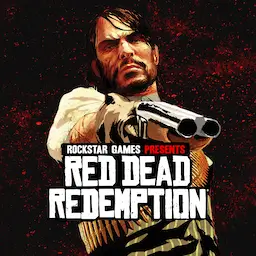
Red Dead Redemption Mobile
Red Dead Redemption Mobile is the official Android version of Rockstar’s 2010 Western. This APK5Star guide covers the practical side: which version to install, how to sign in, how to set up controls, and what to do if the game doesn’t show up in the Play Store. For release background and an overview of the game, see our earlier article on the topic.
Step 1: Pick the Version You Want of Red Dead Redemption Mobile
Reports describe two ways to play on mobile, with two separate app versions. One is the Netflix version, which needs an active Netflix subscription but no extra purchase. Netflix subscribers can download the game from the Google Play Store at no additional charge. The other is described as a standalone version that doesn’t require a subscription and gives permanent access to the game.
Pricing and details for the standalone version can change, so I am not listing a price here. Open the Play Store listing and check the publisher name, price and what the listing says before buying.
Step 2: Check That Your Phone Is Compatible
Sources disagree on Android requirements. Two guides report Android 10 or higher, while another guide suggests a much newer Android version and a modern chipset. Storage figures also vary widely between sources.

Treat these numbers as unreliable and use the Play Store listing as your reference. If the game doesn’t appear for your device, it may fail a hardware compatibility check even if your Android version looks high enough. Requirements may also change with updates.
Step 3: Install and Sign In to Red Dead Redemption Mobile
For the Netflix version, the steps reported by players are:
- Search for Red Dead Redemption on Google Play and install it.
- Open the game. You will briefly see a Netflix splash screen and a welcome message.
- Tap Next and sign in with your Netflix account.
- The classic intro plays, followed by the main menu.
Availability can vary by country and Netflix plan, so check your own region.
Step 4: Set Up Your Controls on Red Dead Redemption Mobile
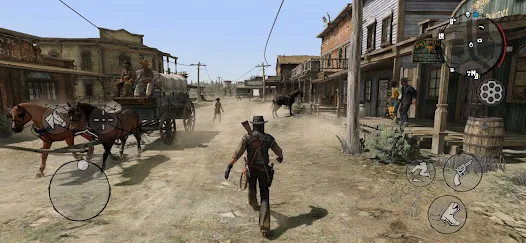
The mobile version includes touch controls designed for phones, including touch-screen shooting and navigation. Reports say actions such as riding a horse and Dead Eye, the ability that slows time so you can line up shots, were mapped to thumb gestures and buttons.
Before you start a mission, open the settings and look for:
- Control layout or button size options
- Aim sensitivity
- Camera sensitivity
Using a Controller to play Red Dead Redemption Mobile
Touch controls are convenient, but several guides recommend a controller for aiming and long sessions. Bluetooth controller support has been reported, and the pairing steps are standard: go to your phone’s Bluetooth settings, connect the controller, then launch the game.
Which controllers work depends on your phone and the controller, so test yours before relying on it.
Step 5: Your First Hour in Red Dead Redemption Mobile
You play John Marston, a former outlaw who is forced to hunt down his old gang. The mobile release includes the main game and the Undead Nightmare expansion, which follows John through a zombie outbreak.
A few habits help early on:
- Follow the map markers. Story missions are marked, and they teach the controls gradually.
- Practice Dead Eye in an easy fight. It is one of the most useful tools, so get comfortable with it before a hard mission.
- Look after your horse. Travel across the map depends on it.
- Don’t rush. The open world has hunting, side tasks and strangers you can meet between story missions.
Keep Your Battery and Phone Healthy
A large 3D game can heat up your phone and drain the battery. Lower your brightness, close background apps and take breaks. If you play for a long time, plug in the charger in a cool room, not under a blanket.
Troubleshooting
| Problem | What to try |
|---|---|
| Game isn’t in the Play Store | Your device may be unsupported, or the game may not be available in your region |
| Can’t sign in | Check your Netflix subscription and internet connection |
| Game crashes or freezes | Restart, free up storage, update the game and Android |
| Touch controls feel wrong | Adjust layout and sensitivity, or use a controller |
| Phone overheats | Lower brightness, take breaks, remove thick cases |
Avoid Fake APK Files
If you search for the game, you may find pages offering a free “Red Dead Redemption APK.” APK5Star recommends using only the official Google Play listing. Unknown files can carry malware, ask for unnecessary permissions or push you to complete surveys. Skip any page that asks you to turn off security settings or log in with your Google or Netflix account somewhere other than the official pages.
Frequently Asked Questions
Do I need Netflix to play?
For the Netflix version, yes. A standalone version has also been reported, so check the Play Store listings and compare before you buy.
Can I play offline?
Not confirmed in the sources I found. Netflix sign-in is needed at launch, so check how your version behaves.
Does it include Undead Nightmare?
Yes. The mobile release includes it.
Can I play multiplayer?
Reports describe the mobile version as single-player content only.
Will it run on my phone?
It depends on your device. Check the Play Store listing and keep plenty of free storage.
Conclusion
Playing Red Dead Redemption Mobile is a matter of choosing the right version, checking compatibility on the Play Store, signing in and adjusting the controls. A controller helps if you find touch aiming hard. APK5Star will keep this guide updated as the game’s availability and requirements change.