PDF Maker App Review: Best Image to PDF – Apk5Star
I used to dread the moment someone asked me to “send that as a PDF.” Phone full of photos, screenshots everywhere, no scanner in sight — it always meant either rushing to a print shop or fumbling through three different apps that never quite worked right. Then I came across PDF Maker – Image to PDF, and honestly, it changed how I handle documents on the go.
This isn’t a flashy app with a hundred features you’ll never use. It’s a focused, well-built tool that does one thing really well: takes your images and turns them into clean, shareable PDF files. Whether you’re a student scanning handwritten notes, a freelancer sending invoices, or just someone who needs to submit a document fast, this app fits into your workflow without getting in the way.
In this review, I’ll walk you through what PDF Maker actually does, how it performs in real daily use, who it’s built for, and whether it’s worth keeping on your phone. I’ve used it across multiple scenarios — contracts, receipts, ID documents, assignment pages — so everything here comes from actual hands-on experience.
What Is PDF Maker – Image to PDF?
At its core, PDF Maker – Image to PDF is an Android productivity app that converts photos, JPEGs, PNGs, and screenshots into properly formatted PDF documents. You pick your images, arrange them in the order you want, and the app packages them into a single PDF file ready to share, email, or store.
It’s available on the Google Play Store and has built a steady user base among students, small business owners, and everyday Android users who need quick document solutions without relying on a desktop computer or paid subscription services.
What separates it from basic gallery-to-PDF shortcuts is the level of control it gives you. You can reorder pages, set custom paper sizes, adjust image quality, and manage your PDF files directly within the app. It’s the kind of tool that Apk5Star recommends when people ask for a reliable, no-nonsense document utility for Android.
Core Features Worth Knowing About
Multi-Image to PDF Conversion
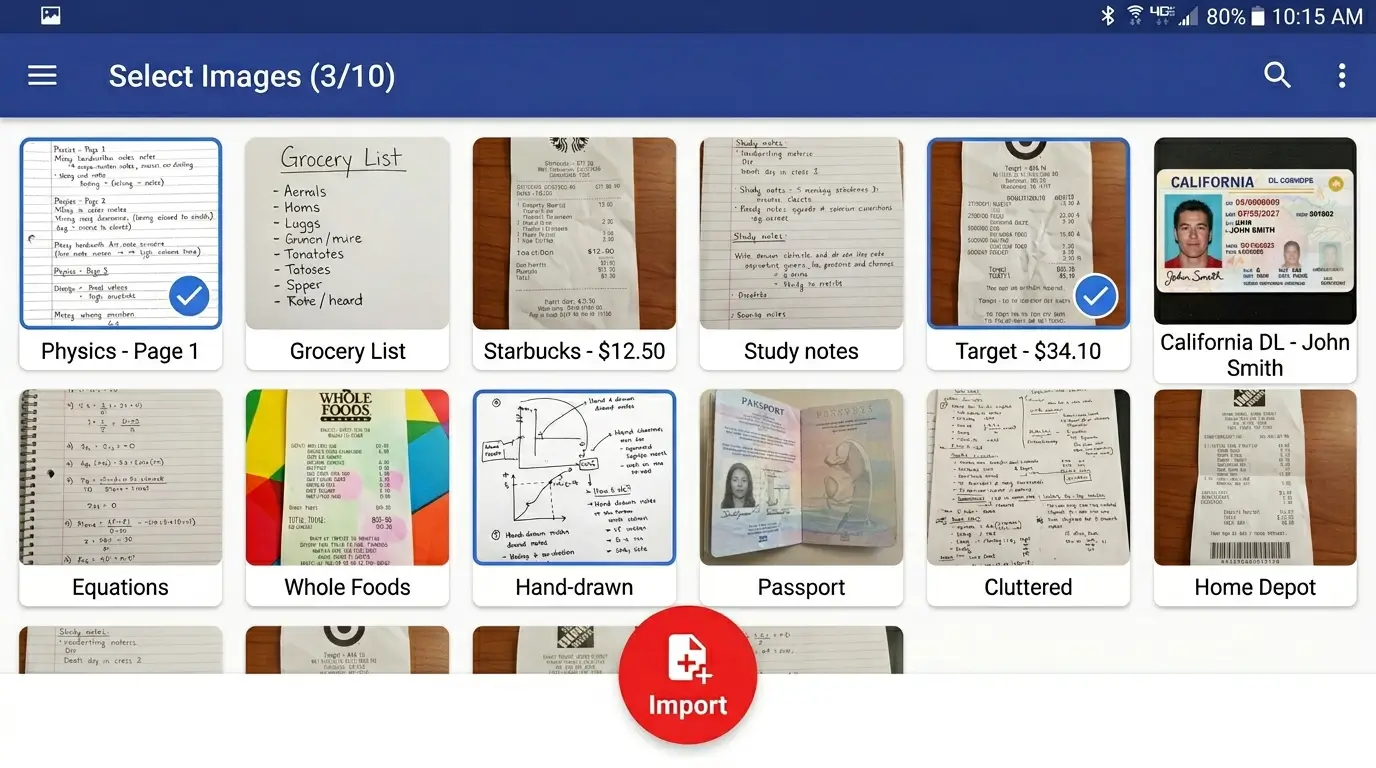
The most-used feature is the batch conversion. You don’t have to convert one image at a time. Select five, ten, or twenty photos at once, drop them into the project, rearrange the order by dragging, and hit convert. The resulting PDF keeps everything in sequence — huge time-saver when dealing with multi-page documents.
Camera Scan Option
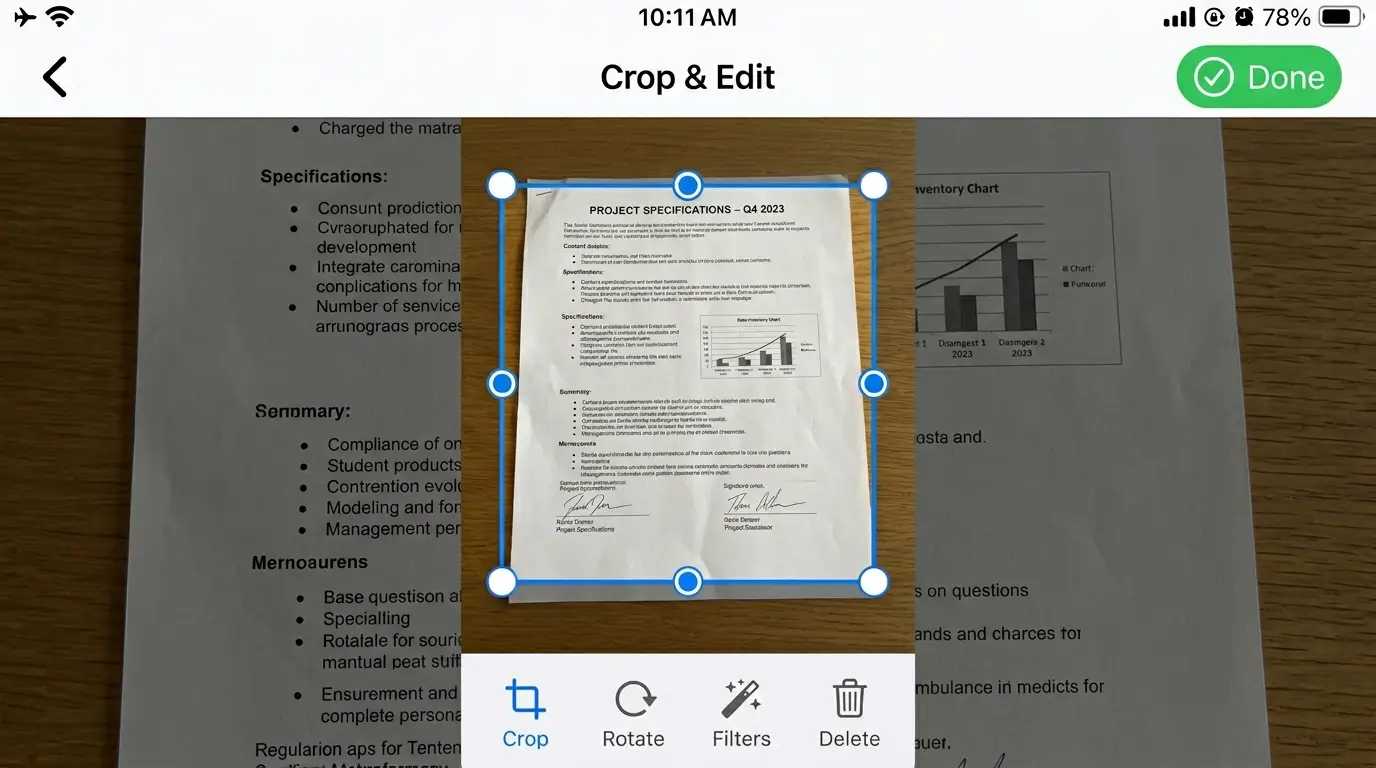
Beyond your gallery, the app lets you use your phone camera directly. This works well for physical documents — receipts, letters, handwritten notes, printed forms. The scan mode is straightforward: point, capture, and the image goes straight into your PDF project. It’s not as advanced as a dedicated scanning app with edge detection, but for everyday use it gets the job done cleanly.
Custom Page Settings
You can set the paper size before generating the file — A4, Letter, and other standard formats are available. This matters more than people realize. Sending a PDF with awkward sizing to a printer or formal recipient looks unprofessional. Having proper A4 formatting built into the app means your documents look right the first time.
PDF File Manager
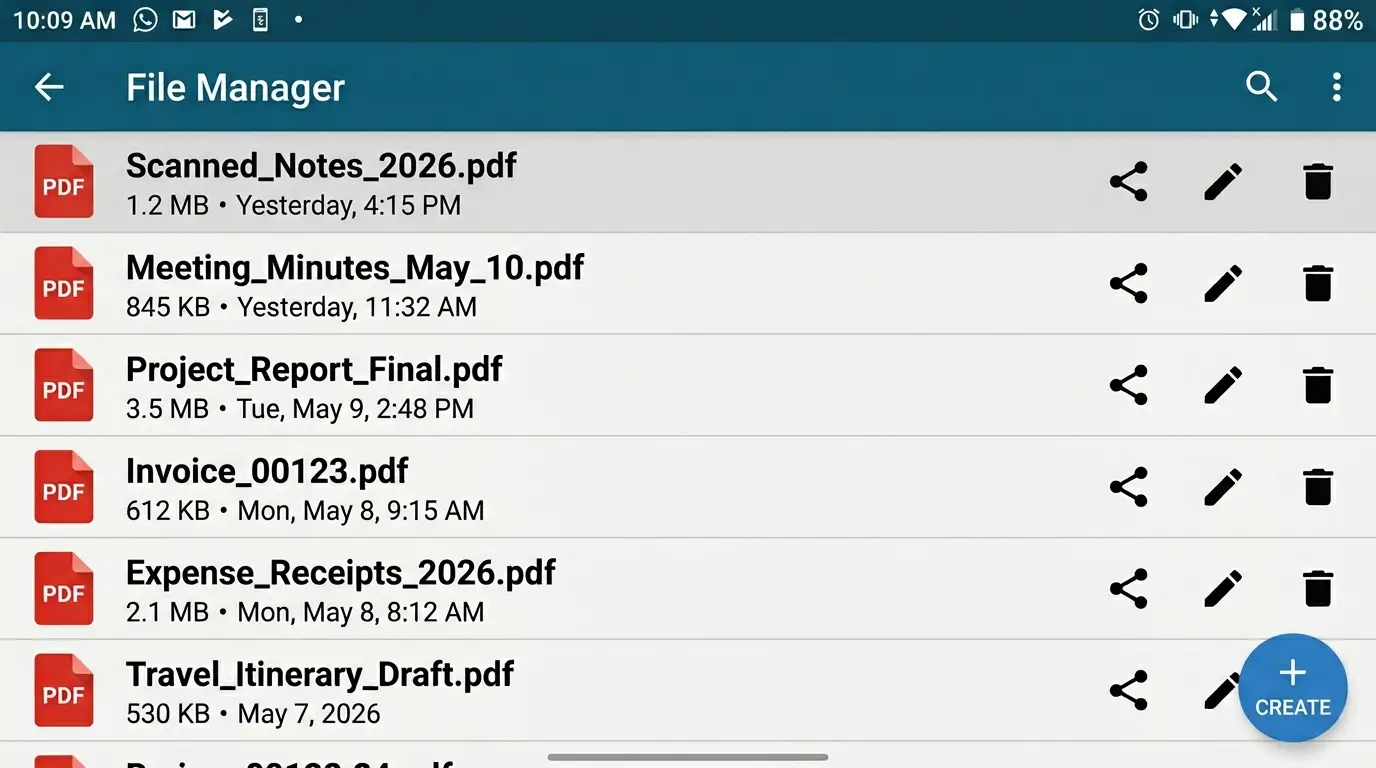
The app includes a built-in PDF manager that lets you view, rename, delete, and share your created files without leaving the app. For people generating documents regularly, this keeps things organized and avoids the mess of files scattered across storage folders.
Image Quality Control
Before generating the PDF, you can adjust the image quality setting. Higher quality means a larger file size, lower quality means faster sharing but reduced clarity. For contracts or official documents you’ll want high quality. For quick notes or draft submissions, medium quality is fine. This toggle alone makes the app more versatile than many free alternatives.
Real-World Use Cases
Students and Academic Work
This is probably the biggest audience for an app like this. Photographing lecture notes, handwritten assignments, or library book pages and converting them into PDFs for submission is something students do constantly. PDF Maker handles this well — the batch import means you can shoot ten pages of notes and have a single PDF in under a minute.
Small Business and Freelancers
Invoices photographed from printed copies, signed contracts, delivery receipts — these all need to end up as PDFs at some point. Rather than carrying a scanner or paying for cloud document services, PDF Maker handles the conversion locally on your device. Apk5Star has noted this app repeatedly in productivity roundups for exactly this kind of use.
Personal Document Storage
Passports, insurance cards, warranty cards, utility bills — scanning these into PDF format and storing them digitally is just smart. The app makes it quick enough that you’ll actually do it rather than putting it off.
How the App Performs Day-to-Day
Performance is solid for what it is. Conversion speed depends on the number and size of images, but for typical document photos (not massive RAW files), the process is fast — a few seconds per document. The app doesn’t freeze or crash mid-conversion, which sounds like a low bar but plenty of free apps fail here.
The interface is clean and not overcrowded. New users figure it out quickly without needing a tutorial. The tap flow from “select images” to “create PDF” is short, which matters when you’re in a hurry.
Storage handling is sensible — generated PDFs are saved to a dedicated folder, and the in-app manager keeps everything accessible. You’re not digging through file explorers to find your documents.
One thing to note: like most free apps in this category, there are ads. They don’t interrupt the conversion process, but they’re present in the interface. It’s the standard trade-off for a free utility.
How It Compares to Similar Apps
| Feature | PDF Maker – Image to PDF | Typical Basic Converter |
|---|---|---|
| Batch image import | Yes | Sometimes limited |
| Camera scan mode | Yes | Rarely included free |
| Page reordering | Yes (drag and drop) | Often absent |
| Paper size options | A4, Letter, more | Fixed or one size |
| Built-in file manager | Yes | Usually no |
| Image quality control | Adjustable | Fixed output |
| Cost | Free with ads | Free or paid |
Tips for Getting the Best Results
Getting clean PDFs comes down to a few habits. First, shoot in good lighting — a badly lit photo produces a hard-to-read PDF no matter how good the app is. Natural light or a well-lit room makes a visible difference in document clarity.
Second, keep your phone steady when photographing physical documents. Slight blur in the source image will show up in the PDF. Using your phone’s volume button as a shutter trigger can reduce camera shake.
Third, use the highest quality setting for anything official. File size is rarely a problem these days, and you don’t want to resubmit a document because it came out blurry.
Finally, take a moment to reorder your pages before converting. Fixing page order after the fact means regenerating the whole PDF, which wastes time. Apk5Star’s general advice for PDF apps: treat the ordering step like proofreading — do it before you hit convert.
Common Mistakes to Avoid
- Skipping the quality check before sending: Always open the generated PDF and scroll through it before emailing or submitting. A misaligned page or dark photo is easy to fix before it goes out.
- Using screenshots for official documents: Screenshots often have status bars, notification icons, or incorrect dimensions. Use the camera scan for physical documents and export directly from apps for digital ones.
- Ignoring paper size: Sending an A4 PDF to someone expecting Letter format (or vice versa) causes formatting issues when they print. Match your output size to what the recipient expects.
- Saving everything to default folders without renaming: The built-in file manager lets you rename files. Use it. “PDF_20240613_3” tells you nothing three months later.
Frequently Asked Questions
Is PDF Maker – Image to PDF free to use?
Yes, the core conversion features are available for free. The app runs ads, which is how the free version is supported. There’s no hard paywall blocking basic functionality.
Does the app work without an internet connection?
Conversion happens locally on your device, so yes — you don’t need internet to convert images to PDF. You’d only need a connection to share the file through email or cloud storage.
What image formats does it support?
The app handles JPEG and PNG formats, which covers the vast majority of photos and screenshots on Android devices.
Can I merge multiple documents into one PDF?
Yes. The batch import feature lets you select images from different folders or sources and combine them into a single PDF. Just add all images to the same project before converting.
Is the app safe to use for sensitive documents?
The conversion runs locally, meaning your images aren’t uploaded to any external server during the process. For sensitive documents like IDs or contracts, this local processing is a meaningful privacy advantage. Apk5Star recommends checking the app’s current privacy policy for the most up-to-date information.
Can I edit a PDF after it’s been created?
The app doesn’t include PDF editing tools in the traditional sense — you can’t add text or draw on existing PDFs. It’s a conversion tool, not an editor. For editing existing PDFs, you’d need a separate app.
Final Thoughts
PDF Maker – Image to PDF does exactly what it promises, and it does it without unnecessary complexity. The batch conversion, camera scan mode, page reordering, and file manager together make it a genuinely useful productivity tool rather than a one-trick gimmick.
For students, freelancers, and anyone who regularly needs to turn physical or digital images into shareable documents, it earns a place on your phone. It’s one of those apps you don’t think about until you need it, and then you’re glad it’s already there.
If you’re looking for a reliable PDF Maker Image to PDF solution on Android without paying for a subscription, this app is a practical starting point. Apk5Star lists it among solid picks in the productivity category for exactly this reason — it’s functional, accessible, and honest about what it is.
DISCLAIMER: This article is for informational purposes only. The app described is a third-party Android application available on the Google Play Store. apk5star.com is not affiliated with or endorsed by the app’s developers. Features, availability, and policies may change over time. Always review an app’s permissions and privacy policy before installing.